Getting started
The public site is open to everyone; the application opens with a free account. Here is the way in, and the way around.
The public site and the application
Scrollwork has two parts.
- The public site, scrollwork.app, is open to everyone with no account: the front page and its chapters, and the pages on giving, privacy, the terms, accessibility and how Scrollwork is made.
- The application, at scrollwork.app/app, holds the scrolls, the charts and the Study Reader. It opens with a free account.
On the public site, Sign in at the top right leads into the application. If you are not signed in yet, it takes you to the sign-in page first and then back to where you were going.
Making a free account
On the sign-in page, choose Sign Up. You can join in two ways:
- With your email address. Enter it and press Send the link. A link comes to that address; it works once and lasts twenty-four hours. Opening it is where you give your name, choose your timezone and choose a password of at least twelve characters. Then sign in.
- With Google or Apple. Press Continue with Google or Continue with Apple, and confirm your name and timezone. Nothing is created until you confirm. A new account cannot be made with Microsoft just now; an account that already has Microsoft linked signs in with it as before.
The whole of it is in Your account and privacy.
The first time you open the application
Two things are asked once.
- Before you open Scrollwork. The terms of use and the privacy notice, with Accept and Decline. This is asked once on each device. Decline stores nothing and takes you back to the front page.
- Terms of use. Once for each version of the terms, on your account, with I accept these terms.
After that, when the application has a new version, What's new opens once to say what changed. The full change log is always under About in the menu.
The menu
The application has no bar across the top. Its menu is the small rolled scroll carrying the Scrollwork mark, at the top centre of every page. Press it and it unrolls.
- At its head, The Lineage of Jesus Christ, the first scroll.
- The home page and The Bookshelf.
- Three columns: Scrolls, Charts and Study (the Study Reader and My Notes). Each ends with See all on the Bookshelf.
- Donate, Help (this site, in a new tab) and About: the application's version and its change log.
- At its foot, your name and picture, with a small menu holding Account and Log out.
Press Esc or click outside it to roll it up again.
The Bookshelf
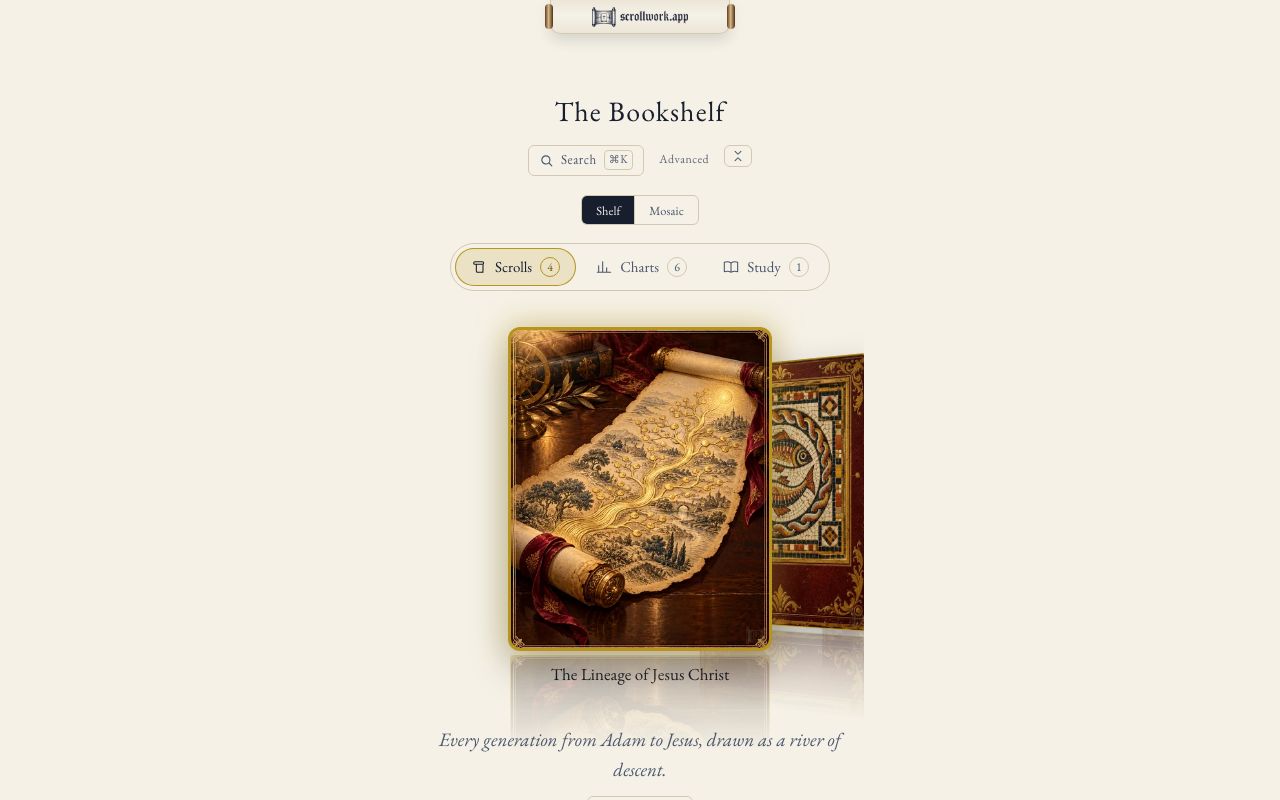
The Bookshelf, at scrollwork.app/app, is where everything stands.
- Scrolls, Charts and Study are its tabs, each with a count.
- Move along a shelf with the arrow keys, by dragging or swiping, or with Previous and Next. Press Enter or click the one in front to open it.
- Shelf and Mosaic change how it is shown: a row of covers, or tiles that turn over to say what each holds. Your choice is remembered on this device.
- Search at the top searches the whole Bible and everything on the scrolls. See Search.
Where next
- To read Scripture: The Study Reader.
- To see the whole sweep at once: The scrolls.
- To use Scrollwork with a keyboard alone: Keyboard shortcuts.